
DbVisualizer supports multiple methods to connect to Databricks
- Manual (set authentication properties in the Properties tab)
- Personal Access Token
- OAuth Token Pass-Through
- OAuth Browser-Based
- OAuth Machine-to-Machine
- OAuth Azure Managed Identity
Browser-Based
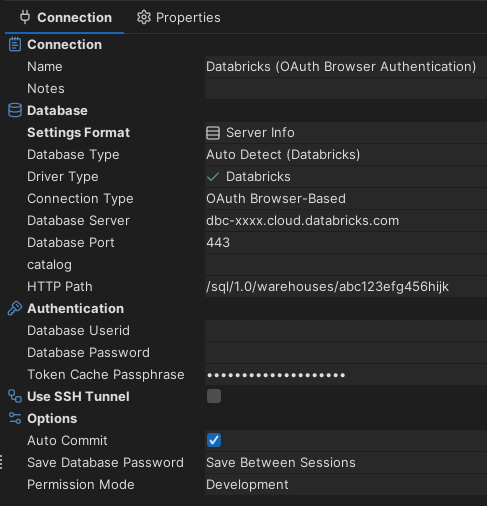
1. Create Database Connection with Driver: Databricks
2. Connection Type: OAuth Browser-Based
3. Fill in:
- Server: the workspace hostname, e.g. adb-1234567890.12.azuredatabricks.net or dbc-xxxx.cloud.databricks.com
- Port: 443
- catalog: target catalog (e.g. hive_metastore or a Unity Catalog name)
- HTTP Path: the path from the SQL warehouse / cluster's Connection details tab, e.g. /sql/1.0/warehouses/abc123…
- Token Cache Passphrase (optional but recommended) - a password to encrypt the cached OAuth token so they aren't sent to the browser on every connect. To disable caching entirely, add driver property EnableTokenCache=0 in the Properties tab.
4. Leave Database Userid/Password empty, the browser handles auth.
5. Connect, and it should open the default browser to authenticate.
Personal Access Token
Leave Database Userid empty and fill in the personal access token in the Database Password field.
Token Pass-Through
Leave Database Userid/Password empty.
Fill in Auth Access Token and Auth Refresh Token.
Machine-to-Machine
Leave Database Userid/Password empty.
Fill in OAuth2 Client ID and OAuth2 Secret.